Best AI Video Editing Tools for YouTubers in 2026 (Picked by Job)
AI video editing covers four different jobs: editing long videos, turning them into Shorts, adding captions and making B-roll. Here are the best tools for each, with dated pricing and what YouTube's AI rules mean for monetization.
“Best AI video editor” is a confusing search because it covers four separate jobs. A tool that is brilliant at turning a 20-minute video into ten Shorts can be useless for editing the 20-minute video in the first place.
So this guide is organised by job:
| Job | Our pick | Budget pick |
|---|---|---|
| Edit long-form talking-head videos | Descript | DaVinci Resolve (free) |
| Full timeline editing with AI help | Adobe Premiere Pro | DaVinci Resolve Studio (one-time) |
| Turn long videos into Shorts | Opus Clip | Klap (annual plan) |
| Animated captions for Shorts | Submagic | CapCut |
| Clean up voice audio | Descript Studio Sound or Premiere Enhance Speech | Adobe Podcast Enhance |
| Generate B-roll | Runway | Google AI Pro (Flow) |
Prices below come from each vendor’s official pricing page, checked on November 8, 2026. Where we couldn’t confirm a US price, we say so. This comparison is based on official documentation and public pricing, not long-term hands-on testing, and it contains no affiliate links.
Before you buy: what YouTube’s AI rules mean for you
AI editing tools are safe to use on a monetized channel. AI-generated channels are a different matter.
In July 2026, YouTube clarified its inauthentic content policy. Channels built mostly on generic, repetitive or template-based content can lose access to the YouTube Partner Program, whether or not AI made it. Separately, YouTube requires you to disclose realistic synthetic content, such as AI footage of a real place or a real person saying something they didn’t. YouTube says that disclosure doesn’t limit a video’s reach or its eligibility to earn.
In practice: use AI to cut faster, clean audio, caption and repurpose your own ideas. Don’t use it to mass-produce videos with no perspective of your own. If you’re still working towards monetization, read what the 2027 Partner Program changes mean for small channels.
Job 1: Editing the main video
Descript: fastest for talking-head video
Descript lets you edit video by editing its transcript. Its AI tools include Underlord (an AI co-editor), Studio Sound for voice cleanup, filler-word and retake removal, Eye Contact correction, clip creation and AI voices.
- Platforms: Mac, Windows, web.
- Free plan: yes, with 60 media minutes, 100 one-time AI credits and a watermarked 720p export.
- Paid (pricing): Hobbyist $24/month or $16/month billed annually; Creator $35/month or $24/month billed annually; Business $65/month or $50/month billed annually.
- Skip it if: your videos need detailed timeline, colour or effects work, or your monthly upload hours would push you into a higher plan.
Thinking of leaving Descript? We compared the options in best Descript alternatives for creators.
Adobe Premiere Pro: best full editor with AI built in
Premiere is the industry-standard timeline editor, and its AI features have grown quickly. Adobe’s AI editing page lists text-based editing, speech-to-text, caption translation, Enhance Speech, Auto Reframe, Auto Color, and generative features like Generative Extend, which adds a few frames to a clip that is slightly too short.
- Platforms: Mac and Windows.
- Free plan: no; a 7-day trial.
- Price: we couldn’t confirm the current US price from Adobe’s page. Check Premiere plans; generative features draw on a monthly credit allowance.
- Skip it if: you’re a beginner on a budget, or you don’t want a subscription.
DaVinci Resolve: best free editor
Resolve is a professional editor with a free version that has no watermark. Its AI tools include IntelliScript (which builds a rough cut from a script), Smart Reframe, Magic Mask and Voice Isolation. Several AI tools, including text-based editing, are in the paid Studio version.
- Platforms: Mac, Windows, Linux.
- Price (official page): free; Studio is a one-time $236, reduced from $295, on November 8, 2026.
- Skip it if: you want something you can learn in an afternoon, or your computer is old.
CapCut: best for quick edits on a budget
CapCut is a free-first editor from ByteDance with auto captions, text-to-speech, background removal and a video enhancer.
- Platforms: Mac, Windows, web, mobile.
- Price: CapCut says Pro pricing varies by region, device and promotion; check the price in your account.
- Skip it if: you want stable pricing or have concerns about ByteDance’s terms.
Job 2: Turning long videos into Shorts

These tools find the best moments in a long video, crop them to vertical, add captions and suggest hooks. They pay off if you post three or more Shorts a week. If you post one, editing it yourself is often faster.
Opus Clip: best overall clip tool
Opus Clip ranks clips with a “virality score”, adds animated captions, reframes to 9:16, removes filler words and can schedule posts. Pro plans can export to Premiere or Resolve for finishing.
- Platform: web.
- Price (pricing): free plan with watermarked captions and files that expire after 3 days; Starter $15/month; Pro $29/month. Annual prices weren’t shown.
- Skip it if: your videos are visual demonstrations rather than talk-driven.
Klap: best value for high-volume Shorts
Klap handles videos up to three hours long and counts usage in clips, which makes it easy to budget.
- Platform: web.
- Free: you can process one video, but downloading needs a paid plan.
- Price (pricing): Basic $29/month or $174/year (100 clips a month); Pro $79/month or $474/year (300 clips a month).
- Skip it if: you post only a handful of Shorts a month.
Vizard: best if you want to edit the AI’s picks
Vizard pairs AI clipping with a fuller editor, so you can adjust each clip after it’s picked.
- Platform: web.
- Free plan: 60 credits a month (about one minute of video each), 720p, a 10-minute export cap.
- Price: we couldn’t read the current paid prices on Vizard’s pricing page; check before you subscribe.
Job 3: Captions and audio cleanup
Submagic: best animated captions for Shorts
Submagic adds the bold, animated caption styles common on Shorts, plus clips and B-roll on higher plans.
- Platform: web.
- Price (pricing): Starter $19/month or $12/month billed annually (15 videos, up to 2 minutes each); Pro $39/month or $23/month billed annually (40 videos, up to 5 minutes each); Business $69/month or $41/month billed annually (up to 30 minutes each, 4K).
- Skip it if: you want captions on long-form videos. The per-video length limits are built for short clips.
Audio cleanup: you may already have it
Descript’s Studio Sound and Premiere’s Enhance Speech both clean up voice recordings. If you edit elsewhere, Adobe Podcast Enhance offers speech cleanup in the browser with a free tier. A decent microphone in a quiet, soft-furnished room still beats any AI fix.
Job 4: Generating B-roll
Generative video can fill gaps where you have no footage: an establishing shot, an abstract concept, a transition. Use it sparingly, and disclose it when it looks realistic.
Runway: best dedicated generative video tool
- Free: 125 one-time credits.
- Price (pricing): Standard $15/month or $12/month billed annually (625 credits a month); Pro $35/month or $28/month billed annually.
Google Flow (Veo): best if you already pay for Google AI
Google’s Flow uses its Veo video models and comes with Google’s AI plans rather than a separate subscription.
- Price (Google AI plans): Google AI Pro is $19.99/month or $199.99/year and includes 1,000 Flow credits a month.
How to build a small AI editing stack
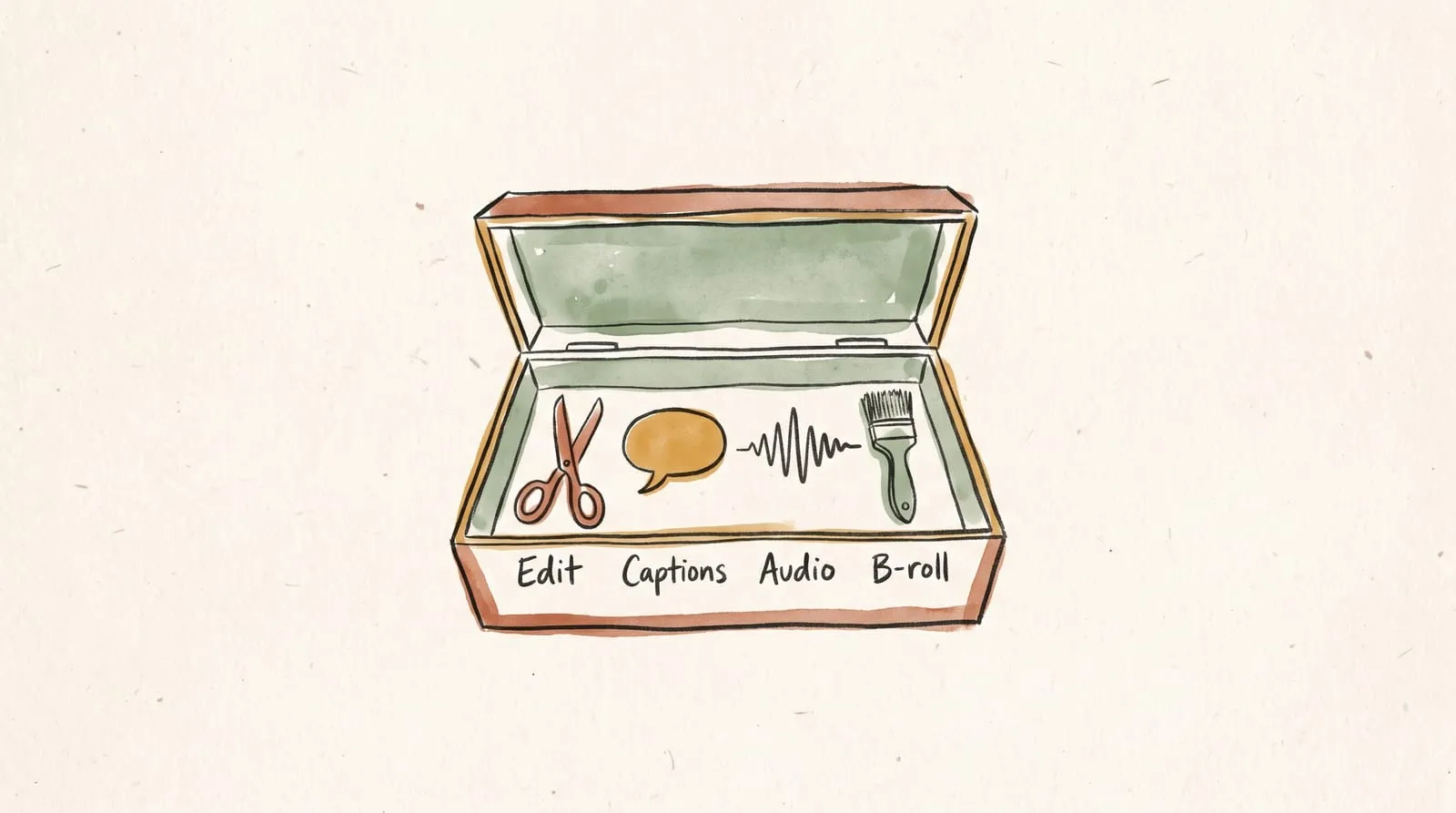
You don’t need one tool for every job. For most solo educational YouTubers:
- $0 stack: DaVinci Resolve (free) for editing, Opus Clip’s free plan to test clipping, Adobe Podcast Enhance for audio.
- Lean paid stack: Descript for the main edit and audio, plus Opus Clip Starter once you post Shorts every week.
- Pro stack: Premiere Pro for editing, plus one clip tool, plus Runway only if B-roll is a real gap.
Three rules keep the cost sensible:
- Start on free plans for a month of real uploads, then pay for the one tool that saved the most time.
- Choose annual billing only after you’ve used a tool for a month. The discount isn’t worth it for a tool you abandon.
- Count time saved, not features. If a tool saves you two hours a week, it’s worth far more than one with twice the features you never open.
Your next step
Pick the job that costs you the most time each week: editing, clipping, captions or audio. Trial the top pick for that job on your next upload, and leave the rest of your workflow alone until it’s settled.
More comparisons live in the Creator Stack.
Sources and evidence
- Descript pricing, checked November 8, 2026.
- Adobe Premiere AI features and plans.
- DaVinci Resolve, checked November 8, 2026.
- CapCut Pro pricing help.
- Opus Clip pricing, Klap pricing, Vizard pricing, Submagic pricing, checked November 8, 2026.
- Runway pricing and Google AI plans, checked November 8, 2026.
- TechCrunch on YouTube’s inauthentic content policy (July 20, 2026) and YouTube’s altered or synthetic content disclosure help.
Prices change often. If a price here no longer matches the vendor’s page, the vendor’s page is right.